How to edit LaTeX on Mac: A Practical LatexSnap Reading and Conversion Workflow
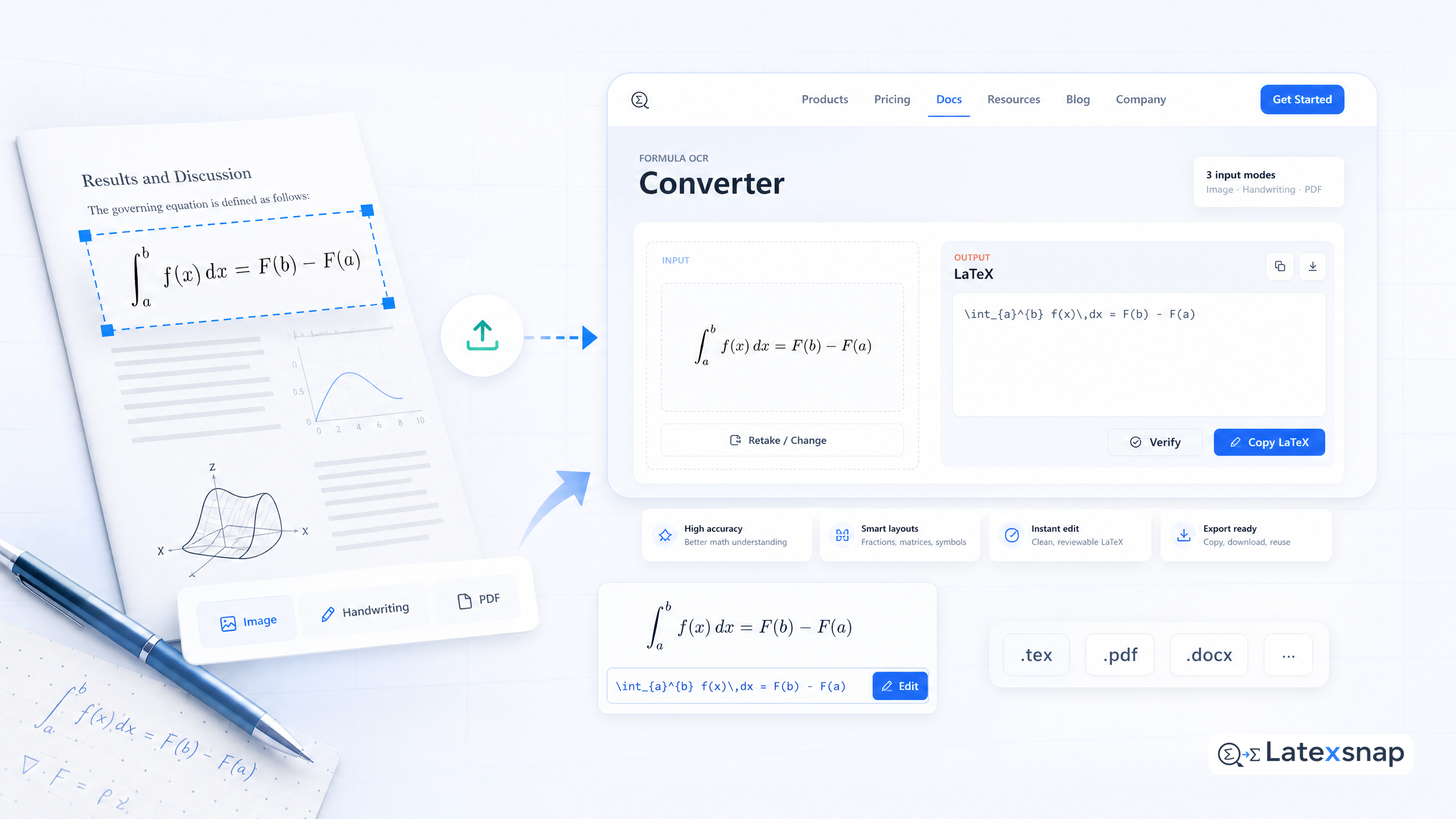
If you're a student, researcher, educator, or technical writer who frequently encounters equations in images, handwritten notes, or PDFs, you know how frustrating it can be to manually transcribe them into LaTeX. That's where LatexSnap comes in. This powerful tool streamlines the process of converting equation images into editable LaTeX code, saving you time and effort. In this guide, we'll walk you through a practical workflow for using LatexSnap to read and convert equations efficiently. For a related next step on LatexSnap workflow, see Convert Notes to LaTeX: A Practical LatexSnap Reading and Conversion Workflow.
Step 1: Capture the Equation Image
The first step is to capture the equation you want to convert. This could be an image from a textbook, a screenshot of a handwritten note, or a snippet from a PDF. Ensure the image is clear and well-lit to improve the accuracy of the conversion. If possible, crop the image to focus solely on the equation, removing any unnecessary text or distractions. A useful companion workflow is LatexSnap workflow, especially when LatexSnap workflow becomes part of the review process.
Step 2: Upload the Image to LatexSnap
Once you have your equation image ready, upload it to LatexSnap. The platform's user-friendly interface makes this process seamless. Simply drag and drop your image or use the upload button to select it from your device. LatexSnap will then analyze the image and extract the LaTeX code.
Step 3: Review and Refine the LaTeX Code
After LatexSnap generates the LaTeX code, it's important to review it for accuracy. While the tool is highly accurate, there may be instances where manual adjustments are needed. Check for any ambiguous symbols, formatting issues, or structural errors. LatexSnap provides a preview of the rendered LaTeX, allowing you to verify that the output matches the original equation.
Step 4: Integrate the LaTeX Code into Your Document
Once you're satisfied with the converted LaTeX code, integrate it into your document. Whether you're working on a research paper, a technical report, or a lecture note, LatexSnap makes it easy to insert the equation seamlessly. Simply copy the generated code and paste it into your LaTeX editor of choice.
Step 5: Optimize Your Workflow with LatexSnap
To make the most of LatexSnap, consider incorporating it into your daily workflow. For example, if you're reviewing a PDF with complex equations, use LatexSnap to extract and convert them as you go. This approach not only saves time but also ensures consistency in your LaTeX documents. If you want to compare this with another practical angle, LatexSnap workflow covers LatexSnap workflow in more detail.
Tips for Best Results
To get the best results from LatexSnap, follow these tips:
- High-Quality Images: Ensure your equation images are clear and free from distortions.
- Crop Effectively: Remove any extraneous elements from the image to focus solely on the equation.
- Manual Review: Always review the generated LaTeX code for accuracy and make necessary adjustments.
- Practice: The more you use LatexSnap, the better you'll become at identifying and correcting potential issues.
Conclusion
LatexSnap is a valuable tool for anyone working with LaTeX, offering a efficient way to convert equation images into editable code. By following the steps outlined in this guide, you can streamline your workflow and focus on the content of your documents rather than the tedious task of manual transcription. Whether you're a student, researcher, educator, or technical writer, LatexSnap can significantly enhance your productivity and accuracy. For teams extending this workflow, LatexSnap workflow is a natural follow-up for LatexSnap workflow.
For more insights and tutorials on using LatexSnap, visit our website. We're committed to helping you master the art of LaTeX editing and make your academic and technical writing experience smoother and more enjoyable. When the document pipeline gets more complex, Using AI to Edit LaTeX in Academic Writing gives more context on academic writing workflow.
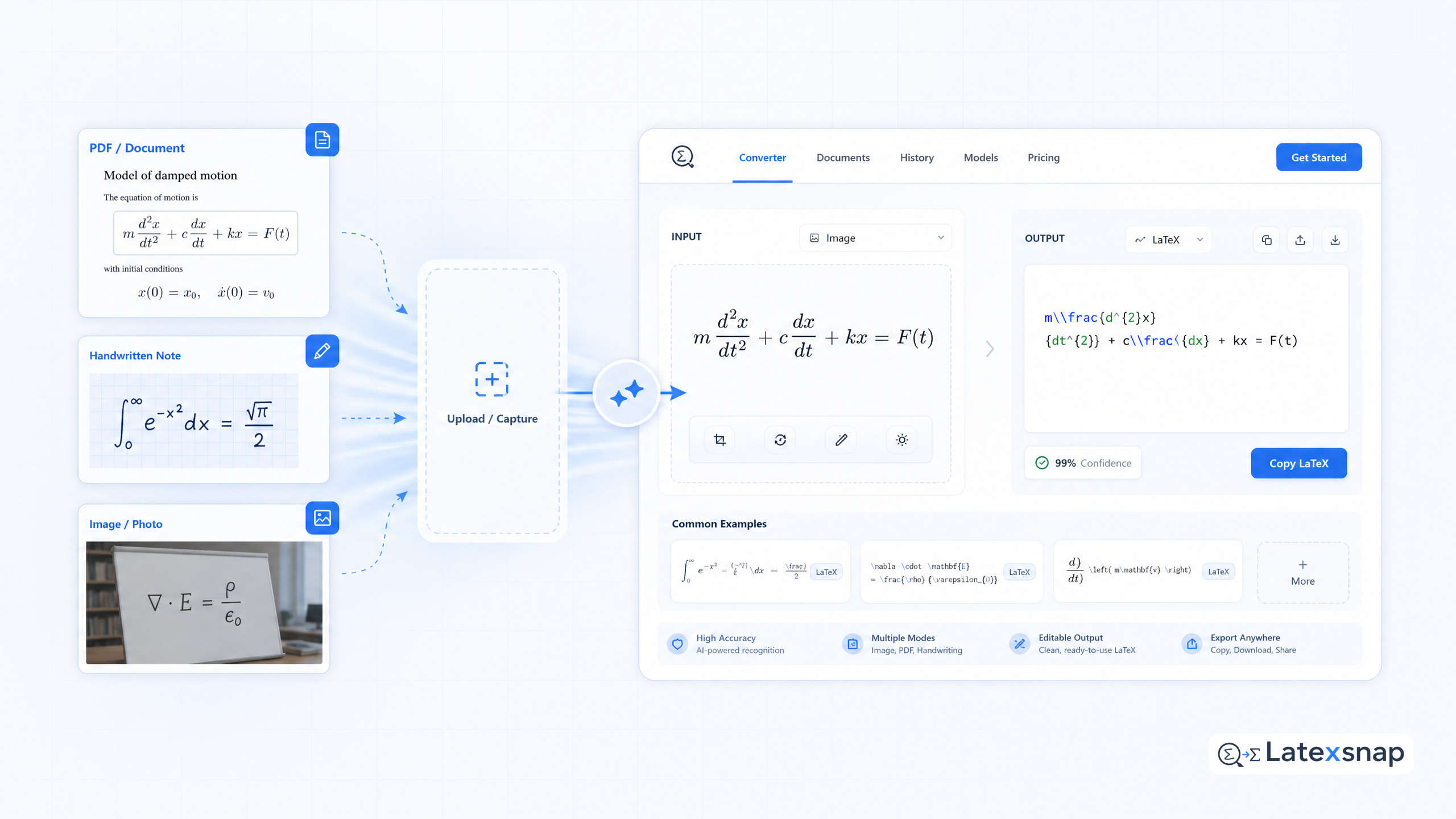
Convert formulas faster
Turn screenshots, handwriting, and PDFs into editable LaTeX.
