How to Install LaTeX: Setup Guide for Windows, macOS, and Linux
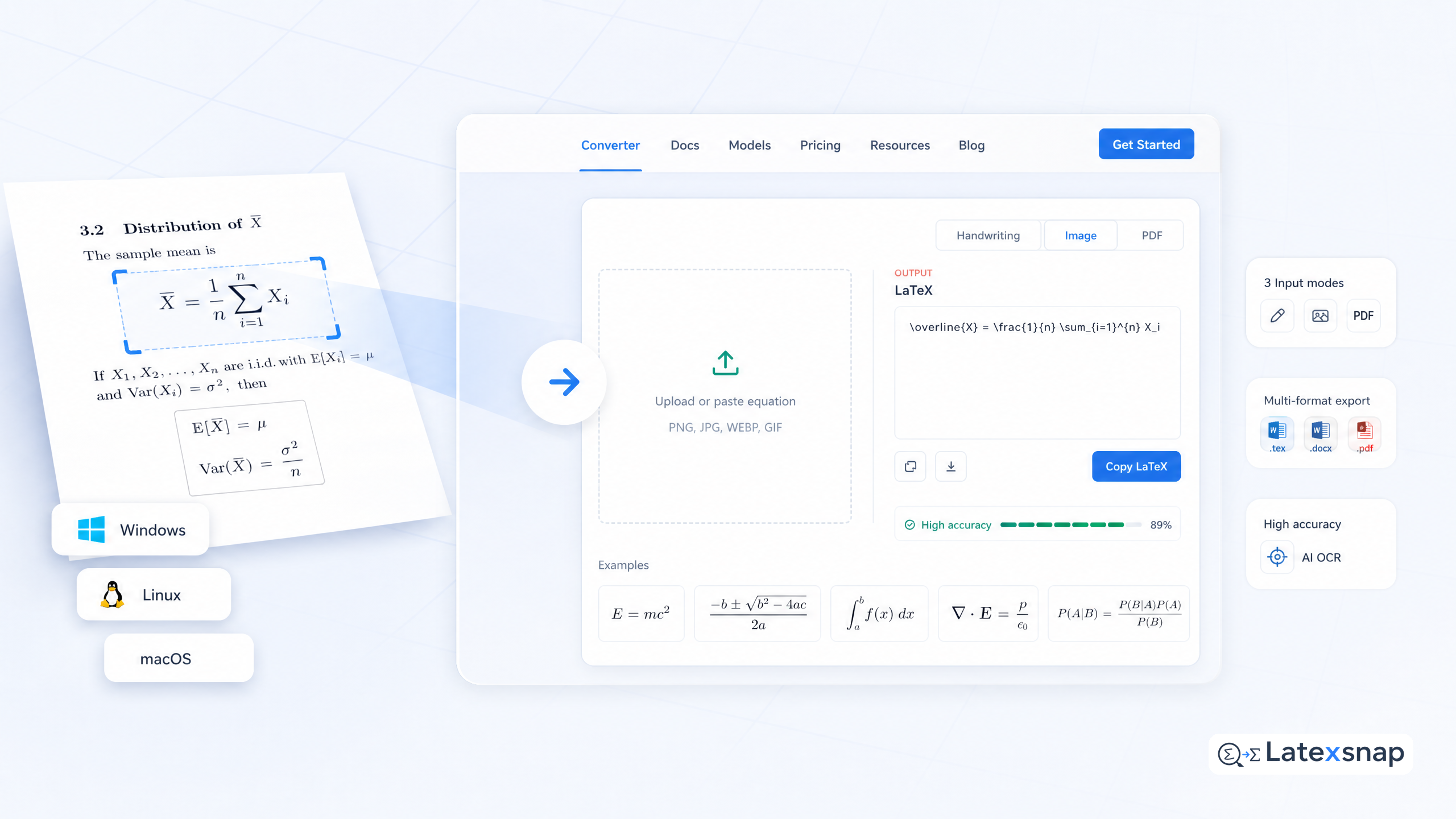
To write LaTeX documents locally, you need a TeX distribution (the compiler and packages) and an editor. This guide covers installation on Windows, macOS, and Linux, plus the online alternative if you want to skip installation entirely. For a related next step on LaTeX editing workflow, see How to Write Fractions in LaTeX.
Option 1: Skip Installation – Use a LaTeX Editor Online
If you don't want to install anything, you can use an online LaTeX editor like a LaTeX editor. These platforms provide a cloud-based environment with preconfigured compilers and packages. Simply create an account, upload your .tex files, and start writing.
Online editors are ideal for quick projects or when you don't have admin access to your machine. However, they require an internet connection and may have limitations on file size or collaboration features.
Option 2: Install a TeX Distribution
TeX distributions bundle the LaTeX compiler, fonts, and packages needed to compile documents. The two most popular distributions are TeX Live and MiKTeX.
TeX Live
TeX Live is a comprehensive distribution maintained by the TeX Users Group. It includes a wide range of packages and tools, making it suitable for most users.
Installation Steps:
- Windows: Download the installer from tug.org/texlive, run
install-tl-windows.exe, and follow the prompts. - macOS: Use MacTeX, a macOS-specific version of TeX Live, available from tug.org/mactex.
- Linux: Install via your package manager, e.g.,
sudo apt install texlive-fullon Debian/Ubuntu.
TeX Live takes time to install (30-60 minutes) but offers a robust setup for advanced users.
MiKTeX
MiKTeX is a Windows-focused distribution that installs packages on demand. It's lighter and faster to set up but may require more manual configuration. For teams extending this workflow, LaTeX Beamer is a natural follow-up for LatexSnap workflow.
Installation Steps:
- Download the installer from miktex.org.
- Run the installer and choose a minimal or full installation.
- MiKTeX will automatically download and install packages as needed.
Option 3: Choose a LaTeX Editor
Once you've installed a TeX distribution, you'll need an editor to write and compile your documents. Here are some popular options: A useful companion workflow is How to Write Vectors in LaTeX, especially when LaTeX editing workflow becomes part of the review process.
VS Code with LaTeX Workshop
VS Code is a lightweight, extensible code editor that works well with LaTeX. The LaTeX Workshop extension adds features like auto-compilation, PDF preview, and syntax highlighting.
- Install VS Code from code.visualstudio.com.
- Add the LaTeX Workshop extension from the marketplace.
TeXstudio
TeXstudio is a dedicated LaTeX editor with built-in features like autocomplete, error checking, and PDF preview. It's ideal for users who want a comprehensive tool without additional setup. When the document pipeline gets more complex, PDF to LaTeX Converter Workflow gives more context on document OCR workflow.
- Download TeXstudio from texstudio.org.
- Follow the installation instructions for your operating system.
Other Editors
Other editors like Sublime Text, Emacs, and Vim can also be configured for LaTeX with plugins or configurations. These are great for users who prefer a highly customizable environment.
Final Tips
- Backup Your Files: Always keep a backup of your
.texfiles and compiled PDFs. - Update Regularly: Keep your TeX distribution and editor up to date to ensure compatibility with new packages.
- Use Equation OCR Tools: Tools like LatexSnap can help convert handwritten or scanned equations into LaTeX format, making it easier to incorporate complex formulas into your documents.
By following these steps, you'll have a fully functional LaTeX setup ready to tackle your academic or technical writing projects. If you want to compare this with another practical angle, LaTeX vs word processors: Which Is Better for Academic Writing? covers LaTeX editing workflow in more detail.
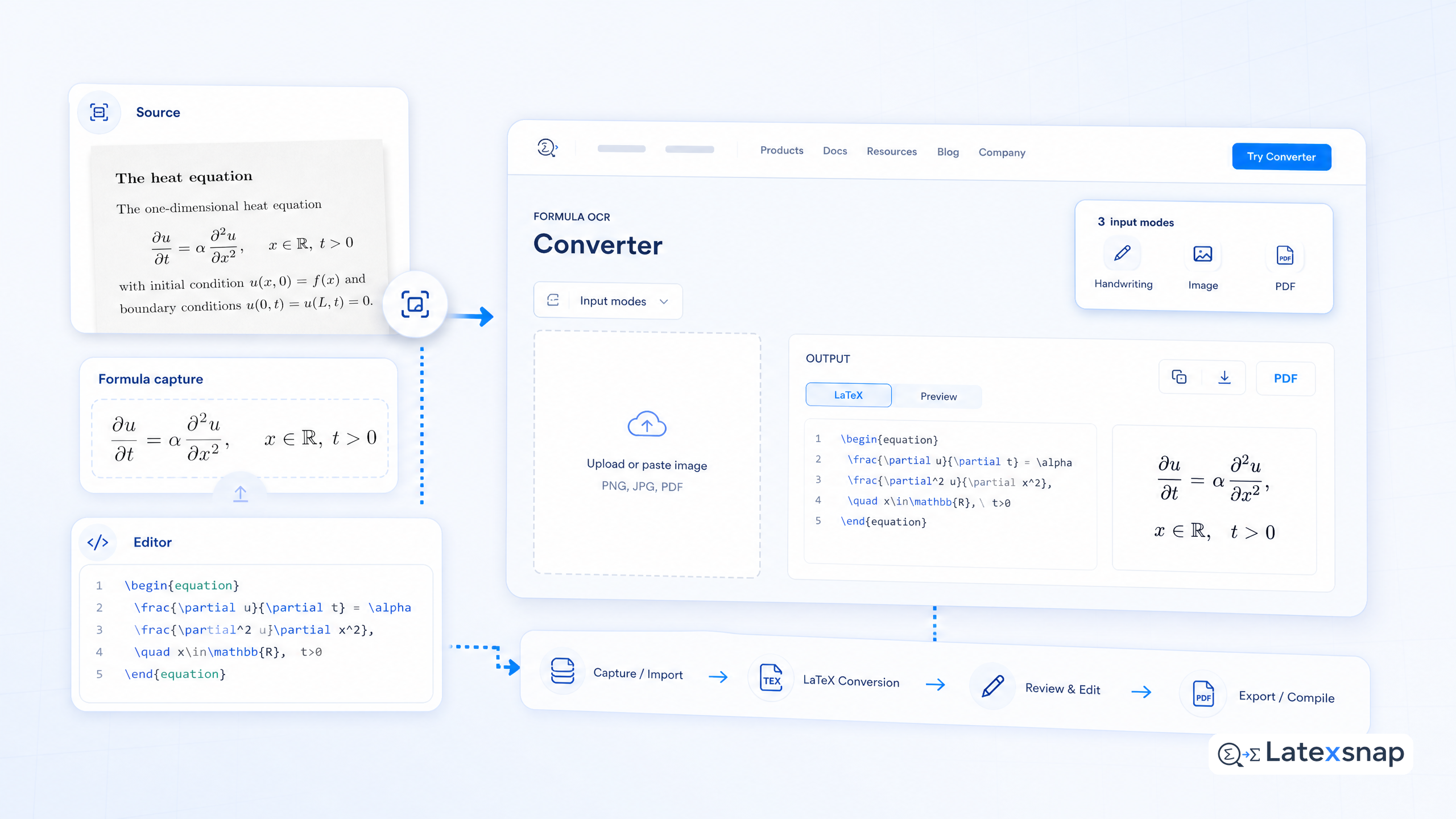
Convert formulas faster
Turn screenshots, handwriting, and PDFs into editable LaTeX.
