OCR-powered Markdown Table Generator
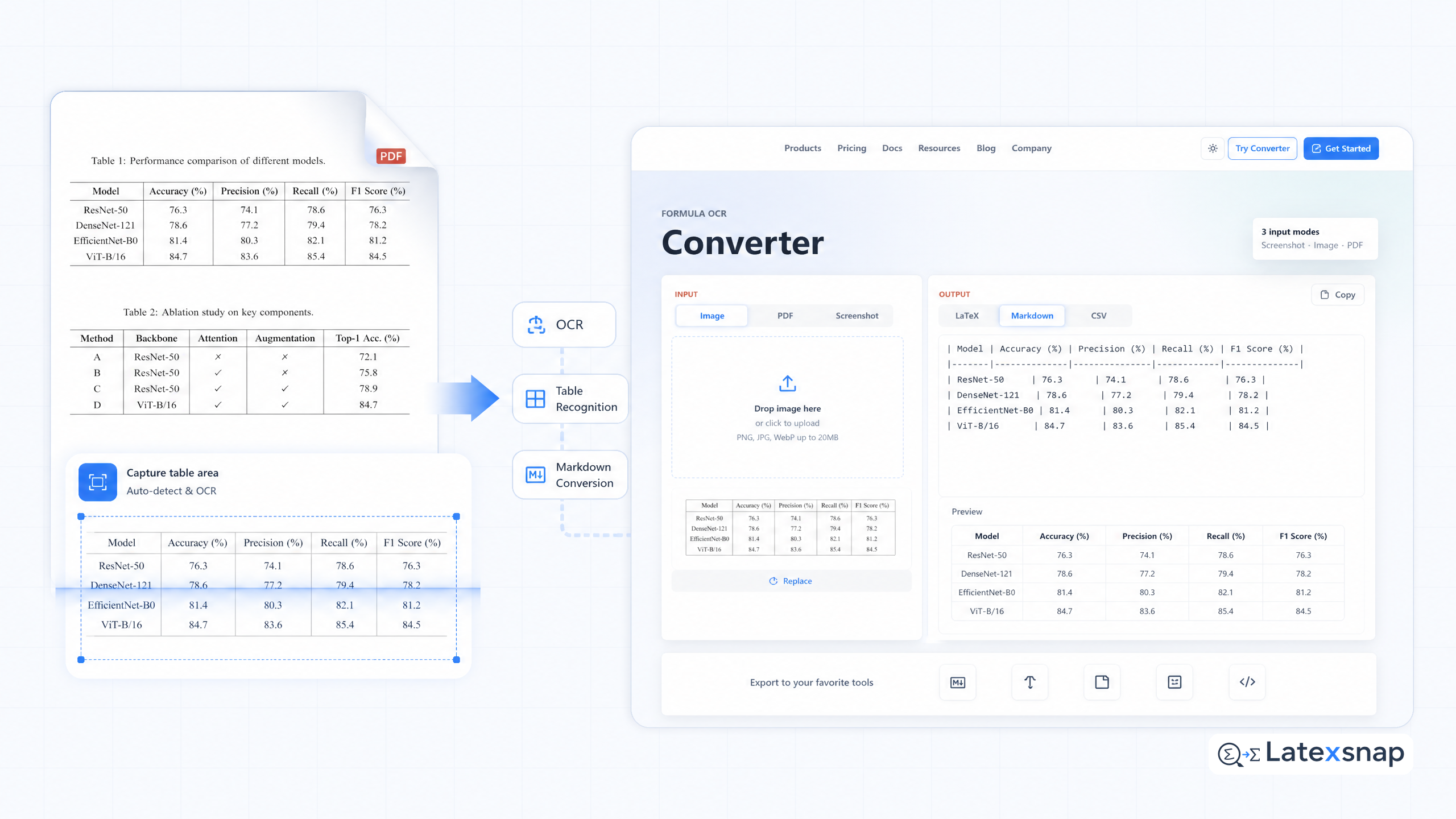
A formula OCR tool has a Markdown Table Generator that allows you to extract tables from PDFs just by taking a screenshot! A formula OCR tool image-to-table conversion is compatible with your favorite editing environments that support Markdown. It's super convenient for using with editors like an OCR notes tool, Typora, and Notion. For a related next step on document OCR workflow, see OCR-powered LaTeX Table Generator.
How to generate Markdown tables from PDFs and images
This article will show you how to generate Markdown tables from PDFs and images using a formula OCR tool. We will cover the following topics:
- What is a Markdown table?
- How to use a formula OCR tool to generate Markdown tables from PDFs and images
- How to edit and customize Markdown tables
- How to export Markdown tables to other formats
What is a Markdown table?
A Markdown table is a simple way to represent tabular data in plain text. A Markdown table consists of three parts:
- A header row, which contains the column names
- A separator row, which contains the column dividers
- A data row, which contains the actual data
Here is an example of a Markdown table:
| Name | Age | City |
|---|---|---|
| John | 25 | New York |
| Jane | 30 | Los Angeles |
| Bob | 35 | Chicago |
How to use a formula OCR tool to generate Markdown tables from PDFs and images
A formula OCR tool is a software that can convert images and PDFs into editable text. A formula OCR tool can also generate Markdown tables from images and PDFs.
To use a formula OCR tool to generate Markdown tables from PDFs and images, follow these steps: A useful companion workflow is PDF to LaTeX Converter Workflow, especially when document OCR workflow becomes part of the review process.
- Open the formula OCR tool and upload the PDF or image file that you want to convert.
- Select the table that you want to convert.
- Click the "Convert" button.
- The formula OCR tool will generate a Markdown table from the selected table.
Here is an example of a Markdown table generated from an image using a formula OCR tool: For teams extending this workflow, Image to LaTeX workflow is a natural follow-up for formula OCR workflow.
| Name | Age | City |
|---|---|---|
| John | 25 | New York |
| Jane | 30 | Los Angeles |
| Bob | 35 | Chicago |
How to edit and customize Markdown tables
Once you have generated a Markdown table, you can edit and customize it using a Markdown editor. A Markdown editor is a software that allows you to write and edit Markdown documents. If you want to compare this with another practical angle, PDF to Word Conversion for Equation OCR covers document OCR workflow in more detail.
To edit and customize a Markdown table, follow these steps:
- Open the Markdown editor and paste the Markdown table that you want to edit.
- Select the cell that you want to edit.
- Type the new value for the cell.
- Press Enter to save the changes.
Here is an example of a Markdown table that has been edited using a Markdown editor:
| Name | Age | City |
|---|---|---|
| John | 26 | New York |
| Jane | 30 | Los Angeles |
| Bob | 35 | Chicago |
How to export Markdown tables to other formats
Once you have edited and customized a Markdown table, you can export it to other formats using a Markdown editor. A Markdown editor can export Markdown tables to formats such as HTML, CSV, and Excel.
To export a Markdown table to another format, follow these steps: When the document pipeline gets more complex, How to Write Fractions in LaTeX gives more context on LaTeX editing workflow.
- Open the Markdown editor and select the Markdown table that you want to export.
- Click the "Export" button.
- Select the format that you want to export the Markdown table to.
- Click the "Export" button again.
- The Markdown editor will export the Markdown table to the selected format.
Here is an example of a Markdown table that has been exported to HTML using a Markdown editor:
| Name | Age | City |
|---|---|---|
| John | 26 | New York |
| Jane | 30 | Los Angeles |
| Bob | 35 | Chicago |
Conclusion
A formula OCR tool is a powerful tool that can convert images and PDFs into editable text. A formula OCR tool can also generate Markdown tables from images and PDFs. Markdown tables are a simple way to represent tabular data in plain text. You can edit and customize Markdown tables using a Markdown editor. You can also export Markdown tables to other formats using a Markdown editor.
Convert formulas faster
Turn screenshots, handwriting, and PDFs into editable LaTeX.
