OCR Console Workflows for Formula Conversion
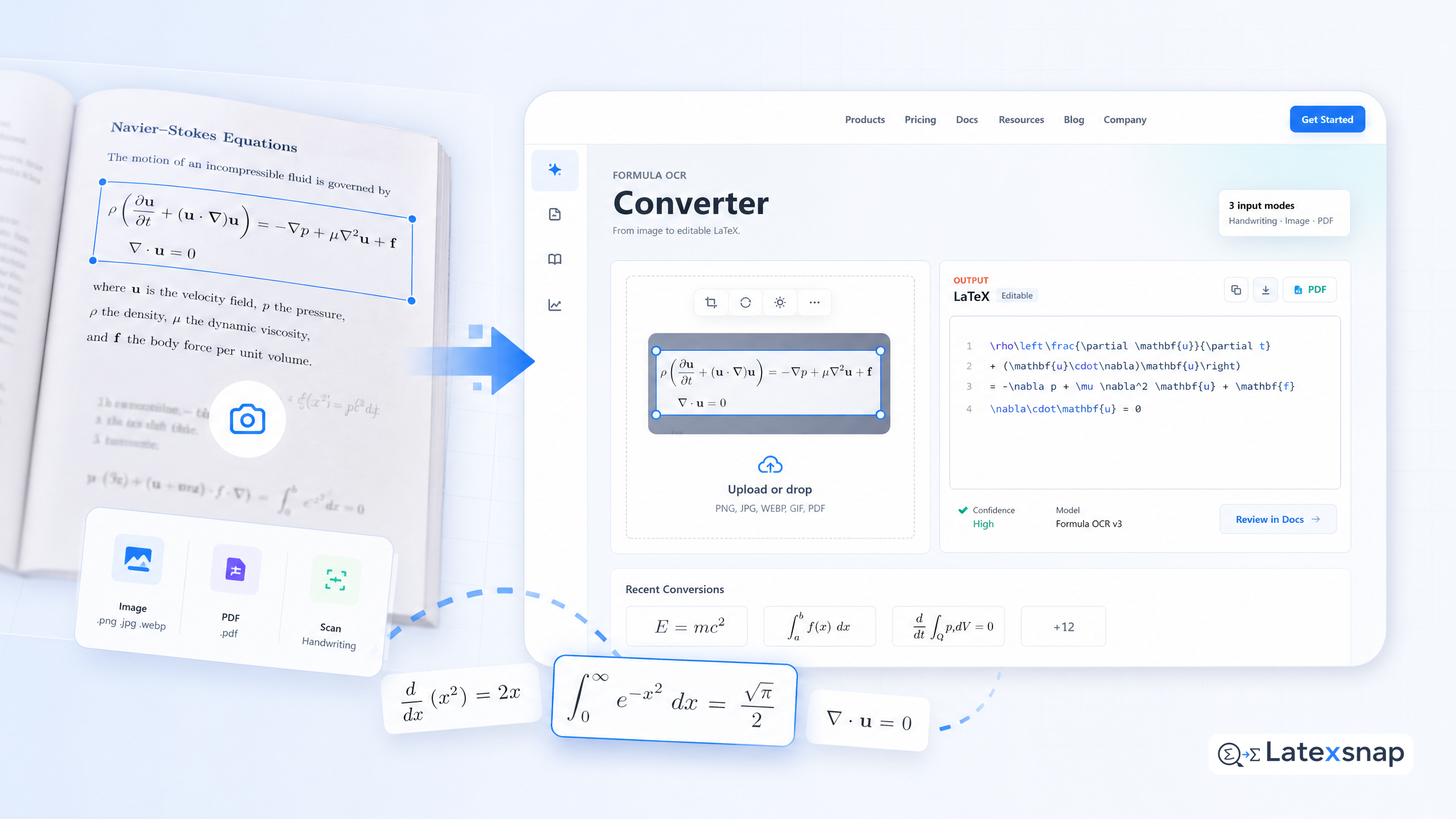
If you're a student, researcher, or technical writer who works with equations daily, you know how frustrating it can be to convert images of formulas into editable LaTeX. Whether you're scanning handwritten notes, capturing screenshots from textbooks, or processing PDFs, the process often feels like a chore. That's where LatexSnap comes in. This tool transforms equation images, handwriting, and PDF snippets into clean, editable LaTeX code, saving you time and effort. For a related next step on document OCR workflow, see What New Document OCR Models Mean for Equation and PDF Conversion.
In this guide, we'll walk through a practical workflow for using LatexSnap to convert formula images into LaTeX. We'll cover everything from preparing your images to reviewing the final output, ensuring you get the best results for your documents.
Step 1: Prepare Your Formula Images
Before uploading your images to LatexSnap, it's essential to ensure they're clear and well-structured. High-quality images lead to more accurate conversions, so take a few moments to review them.
- Crop and Resize: Use image editing tools to crop out unnecessary elements like page numbers or headers. Resize images to a manageable size, ideally between 800×600 and 1200×900 pixels.
- Check for Clarity: Ensure text and symbols are sharp and legible. Blurry or low-resolution images can confuse the OCR engine, leading to errors.
- Avoid Overlapping Text: If your formula is part of a larger document, try to isolate it into a separate image. Overlapping text can complicate the conversion process.
Step 2: Upload and Convert Using LatexSnap
Once your images are ready, it's time to upload them to LatexSnap. The platform is designed to handle a variety of formats, including PNG, JPG, and PDF files. A useful companion workflow is PDF to Word Conversion for Equation OCR, especially when document OCR workflow becomes part of the review process.
- Upload Your File: Log in to your LatexSnap account and navigate to the upload section. Drag and drop your formula images or PDFs into the designated area.
- Select Conversion Options: Depending on your needs, you can choose to convert individual images or entire PDF documents. For PDFs, LatexSnap will process each page and extract the formulas.
- Initiate the Conversion: Click the "Convert" button to start the process. LatexSnap will analyze your file and generate LaTeX code for each formula.
Step 3: Review the Generated LaTeX Code
After the conversion is complete, LatexSnap will provide you with the corresponding LaTeX code. This is where careful review becomes crucial.
- Check for Accuracy: Compare the generated LaTeX code with the original formula. Look for missing symbols, incorrect formatting, or misplaced elements.
- Fix Common Errors: LatexSnap is highly accurate, but occasional mistakes can occur. For example, ambiguous symbols like "+" or "x" might be misinterpreted. Use the editor to correct these issues manually.
- Adjust Formatting: If the formula spans multiple lines or requires special formatting, tweak the LaTeX code to match your document's style.
Step 4: Integrate LaTeX into Your Document
Once you're satisfied with the LaTeX code, it's time to integrate it into your document. Whether you're working on a research paper, textbook, or technical report, seamless integration is key. For teams extending this workflow, Python Clients for Document Conversion Workflows is a natural follow-up for LatexSnap workflow.
- Copy and Paste: Copy the corrected LaTeX code and paste it into your document editor, such as a LaTeX editor or TeXShop.
- Compile and Preview: Compile your document to ensure the formula renders correctly. If there are any issues, revisit the LaTeX code and make adjustments.
- Save and Share: Once everything looks good, save your document and share it with colleagues or publish it online.
Tips for Best Results
To get the most out of LatexSnap, consider these additional tips:
- Use High-Contrast Images: Formulas with black text on a white background tend to convert more accurately.
- Avoid Complex Backgrounds: Images with busy backgrounds or watermarks can interfere with the OCR process.
- Test Different Formats: If you're working with a specific type of document, experiment with different image formats to find the best results.
Final Thoughts
Converting formula images into LaTeX doesn't have to be a tedious task. With LatexSnap, you can streamline the process and focus on what matters most-your work. By following this workflow and paying attention to details like image quality and manual review, you'll be able to create polished, professional documents in no time. If you want to compare this with another practical angle, Image to LaTeX workflow covers formula OCR workflow in more detail.
Whether you're a student working on a thesis, a researcher publishing a paper, or a technical writer crafting manuals, LatexSnap is a powerful tool to have in your arsenal. Give it a try today and experience the difference it can make in your workflow. When the document pipeline gets more complex, How to Write Fractions in LaTeX gives more context on LaTeX editing workflow.

Convert formulas faster
Turn screenshots, handwriting, and PDFs into editable LaTeX.
