How to insert equations to PowerPoint and Google Docs
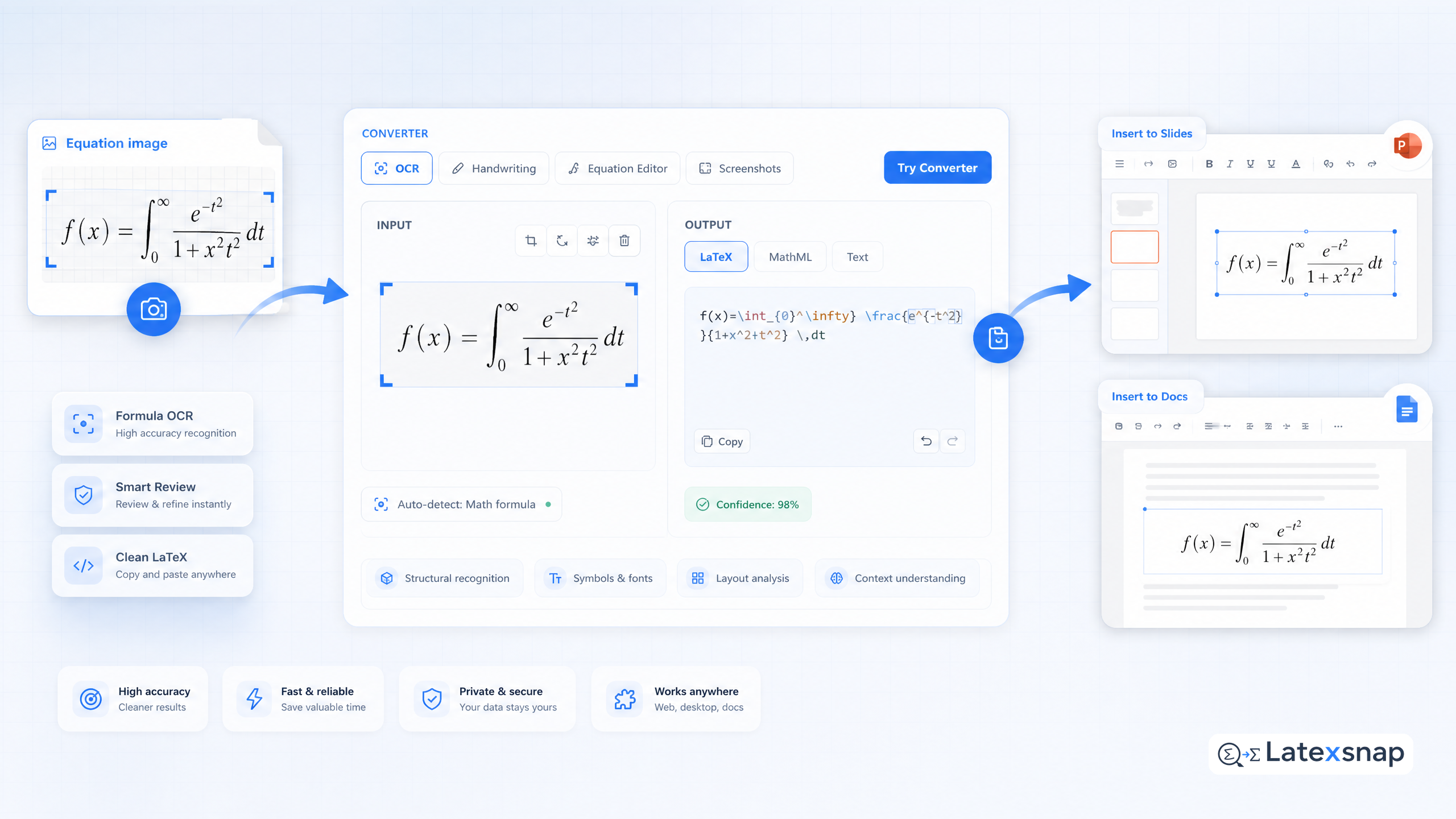
To insert math, move the cursor where you would like to insert it, then copy and paste an equation from our desktop app into the Mini Editor below, or click the "Open in Full Editor" button below and continue editing in the Full Editor. Alternatively, you may go to "Add-ons" menu and click "Insert/Edit Math" from the Hypatia submenu. When you are done editing, click "Insert" to add the equation to your document.
In this guide, we show how to use LaTeX in Google Docs and Power Point with maximum efficiency. The combination of a formula OCR tool and special extensions can greatly facilitate the creation of documents and presentations with math and tables.
How to insert LaTeX equations in Google Docs
Google Docs has in-built equation toolbar, but it is much inferior to LaTeX. It does not support subscripts and superscripts, and it is impossible to use the same symbol in different contexts.
The easiest way to use LaTeX in Google Docs is to install the Hypatia extension. It allows you to insert math and tables directly from the editor.
The extension is free and easy to install.
You can also use the Hypatia extension to convert images to LaTeX. Just upload an image and click the "Convert to LaTeX" button. The extension will automatically detect the formula and convert it to LaTeX.
How to insert LaTeX equations in PowerPoint
PowerPoint has a built-in equation editor, but it is not very convenient to use. It does not support subscripts and superscripts, and it is impossible to use the same symbol in different contexts.
The easiest way to use LaTeX in PowerPoint is to install the Hypatia extension. It allows you to insert math and tables directly from the editor.
The extension is free and easy to install.
You can also use the Hypatia extension to convert images to LaTeX. Just upload an image and click the "Convert to LaTeX" button. The extension will automatically detect the formula and convert it to LaTeX.
How to insert LaTeX equations in Word
Microsoft Word has a built-in equation editor, but it is not very convenient to use. It does not support subscripts and superscripts, and it is impossible to use the same symbol in different contexts.
The easiest way to use LaTeX in Word is to install the Hypatia extension. It allows you to insert math and tables directly from the editor.
The extension is free and easy to install.
You can also use the Hypatia extension to convert images to LaTeX. Just upload an image and click the "Convert to LaTeX" button. The extension will automatically detect the formula and convert it to LaTeX. For a related next step on formula OCR workflow, see Image to LaTeX workflow.
How to insert LaTeX equations in LibreOffice
LibreOffice has a built-in equation editor, but it is not very convenient to use. It does not support subscripts and superscripts, and it is impossible to use the same symbol in different contexts.
The easiest way to use LaTeX in LibreOffice is to install the Hypatia extension. It allows you to insert math and tables directly from the editor.
The extension is free and easy to install.
You can also use the Hypatia extension to convert images to LaTeX. Just upload an image and click the "Convert to LaTeX" button. The extension will automatically detect the formula and convert it to LaTeX.
How to insert LaTeX equations in OpenOffice
OpenOffice has a built-in equation editor, but it is not very convenient to use. It does not support subscripts and superscripts, and it is impossible to use the same symbol in different contexts.
The easiest way to use LaTeX in OpenOffice is to install the Hypatia extension. It allows you to insert math and tables directly from the editor.
The extension is free and easy to install.
You can also use the Hypatia extension to convert images to LaTeX. Just upload an image and click the "Convert to LaTeX" button. The extension will automatically detect the formula and convert it to LaTeX.
How to insert LaTeX equations in Pages
Pages has a built-in equation editor, but it is not very convenient to use. It does not support subscripts and superscripts, and it is impossible to use the same symbol in different contexts.
The easiest way to use LaTeX in Pages is to install the Hypatia extension. It allows you to insert math and tables directly from the editor.
The extension is free and easy to install.
You can also use the Hypatia extension to convert images to LaTeX. Just upload an image and click the "Convert to LaTeX" button. The extension will automatically detect the formula and convert it to LaTeX. A useful companion workflow is How to Convert Images to LaTeX Equations, especially when formula OCR workflow becomes part of the review process.
How to insert LaTeX equations in Numbers
Numbers has a built-in equation editor, but it is not very convenient to use. It does not support subscripts and superscripts, and it is impossible to use the same symbol in different contexts.
The easiest way to use LaTeX in Numbers is to install the Hypatia extension. It allows you to insert math and tables directly from the editor.
The extension is free and easy to install.
You can also use the Hypatia extension to convert images to LaTeX. Just upload an image and click the "Convert to LaTeX" button. The extension will automatically detect the formula and convert it to LaTeX.
How to insert LaTeX equations in Keynote
Keynote has a built-in equation editor, but it is not very convenient to use. It does not support subscripts and superscripts, and it is impossible to use the same symbol in different contexts.
The easiest way to use LaTeX in Keynote is to install the Hypatia extension. It allows you to insert math and tables directly from the editor.
The extension is free and easy to install.
You can also use the Hypatia extension to convert images to LaTeX. Just upload an image and click the "Convert to LaTeX" button. The extension will automatically detect the formula and convert it to LaTeX.
How to insert LaTeX equations in iWork
iWork has a built-in equation editor, but it is not very convenient to use. It does not support subscripts and superscripts, and it is impossible to use the same symbol in different contexts.
The easiest way to use LaTeX in iWork is to install the Hypatia extension. It allows you to insert math and tables directly from the editor.
The extension is free and easy to install.
You can also use the Hypatia extension to convert images to LaTeX. Just upload an image and click the "Convert to LaTeX" button. The extension will automatically detect the formula and convert it to LaTeX.
How to insert LaTeX equations in Pages for Mac
Pages for Mac has a built-in equation editor, but it is not very convenient to use. It does not support subscripts and superscripts, and it is impossible to use the same symbol in different contexts.
The easiest way to use LaTeX in Pages for Mac is to install the Hypatia extension. It allows you to insert math and tables directly from the editor. If you want to compare this with another practical angle, Writing LaTeX Math Equations with AI covers formula OCR workflow in more detail.
The extension is free and easy to install.
You can also use the Hypatia extension to convert images to LaTeX. Just upload an image and click the "Convert to LaTeX" button. The extension will automatically detect the formula and convert it to LaTeX.
How to insert LaTeX equations in Numbers for Mac
Numbers for Mac has a built-in equation editor, but it is not very convenient to use. It does not support subscripts and superscripts, and it is impossible to use the same symbol in different contexts.
The easiest way to use LaTeX in Numbers for Mac is to install the Hypatia extension. It allows you to insert math and tables directly from the editor.
The extension is free and easy to install.
You can also use the Hypatia extension to convert images to LaTeX. Just upload an image and click the "Convert to LaTeX" button. The extension will automatically detect the formula and convert it to LaTeX.
How to insert LaTeX equations in Keynote for Mac
Keynote for Mac has a built-in equation editor, but it is not very convenient to use. It does not support subscripts and superscripts, and it is impossible to use the same symbol in different contexts.
The easiest way to use LaTeX in Keynote for Mac is to install the Hypatia extension. It allows you to insert math and tables directly from the editor.
The extension is free and easy to install.
You can also use the Hypatia extension to convert images to LaTeX. Just upload an image and click the "Convert to LaTeX" button. The extension will automatically detect the formula and convert it to LaTeX.
How to insert LaTeX equations in iWork for Mac
iWork for Mac has a built-in equation editor, but it is not very convenient to use. It does not support subscripts and superscripts, and it is impossible to use the same symbol in different contexts.
The easiest way to use LaTeX in iWork for Mac is to install the Hypatia extension. It allows you to insert math and tables directly from the editor.
The extension is free and easy to install.
You can also use the Hypatia extension to convert images to LaTeX. Just upload an image and click the "Convert to LaTeX" button. The extension will automatically detect the formula and convert it to LaTeX. For teams extending this workflow, Handwriting to LaTeX: Convert Your Notes Instantly is a natural follow-up for formula OCR workflow.
How to insert LaTeX equations in Pages for iOS
Pages for iOS has a built-in equation editor, but it is not very convenient to use. It does not support subscripts and superscripts, and it is impossible to use the same symbol in different contexts.
The easiest way to use LaTeX in Pages for iOS is to install the Hypatia extension. It allows you to insert math and tables directly from the editor.
The extension is free and easy to install.
You can also use the Hypatia extension to convert images to LaTeX. Just upload an image and click the "Convert to LaTeX" button. The extension will automatically detect the formula and convert it to LaTeX.
How to insert LaTeX equations in Numbers for iOS
Numbers for iOS has a built-in equation editor, but it is not very convenient to use. It does not support subscripts and superscripts, and it is impossible to use the same symbol in different contexts.
The easiest way to use LaTeX in Numbers for iOS is to install the Hypatia extension. It allows you to insert math and tables directly from the editor.
The extension is free and easy to install.
You can also use the Hypatia extension to convert images to LaTeX. Just upload an image and click the "Convert to LaTeX" button. The extension will automatically detect the formula and convert it to LaTeX.
How to insert LaTeX equations in Keynote for iOS
Keynote for iOS has a built-in equation editor, but it is not very convenient to use. It does not support subscripts and superscripts, and it is impossible to use the same symbol in different contexts.
The easiest way to use LaTeX in Keynote for iOS is to install the Hypatia extension. It allows you to insert math and tables directly from the editor.
The extension is free and easy to install.
You can also use the Hypatia extension to convert images to LaTeX. Just upload an image and click the "Convert to LaTeX" button. The extension will automatically detect the formula and convert it to LaTeX. When the document pipeline gets more complex, AI Drafting for LaTeX Equations gives more context on LatexSnap workflow.
How to insert LaTeX equations in iWork for iOS
iWork for iOS has a built-in equation editor, but it is not very convenient to use. It does not support subscripts and superscripts, and it is impossible to use the same symbol in different contexts.
The easiest way to use LaTeX in iWork for iOS is to install the Hypatia extension. It allows you to insert math and tables directly from the editor.
The extension is free and easy to install.
You can also use the Hypatia extension to convert images to LaTeX. Just upload an image and click the "Convert to LaTeX" button. The extension will automatically detect the formula and convert it to LaTeX.
How to insert LaTeX equations in Pages for Android
Pages for Android has a built-in equation editor, but it is not very convenient to use. It does not support subscripts and superscripts, and it is impossible to use the same symbol in different contexts.
The easiest way to use LaTeX in Pages for Android is to install the Hypatia extension. It allows you to insert math and tables directly from the editor.
The extension is free and easy to install.
You can also use the Hypatia extension to convert images to LaTeX. Just upload an image and click the "Convert to LaTeX" button. The extension will automatically detect the formula and convert it to LaTeX.
How to insert LaTeX equations in Numbers for Android
Numbers for Android has a built-in equation editor, but it is not very convenient to use. It does not support subscripts and superscripts, and it is impossible to use the same symbol in different contexts.
The easiest way to use LaTeX in Numbers for Android is to install the Hypatia extension. It allows you to insert math and tables directly from the editor.
The extension is free and easy to install.
You can also use the Hypatia extension to convert images to LaTeX. Just upload an image and click the "Convert to LaTeX" button. The extension will automatically detect the formula and convert it to LaTeX.
How to insert LaTeX equations in Keynote for Android
Keynote for Android has a built-in equation editor, but it is not very convenient to use. It does not support subscripts and superscripts, and it is impossible to use the same symbol in different contexts.
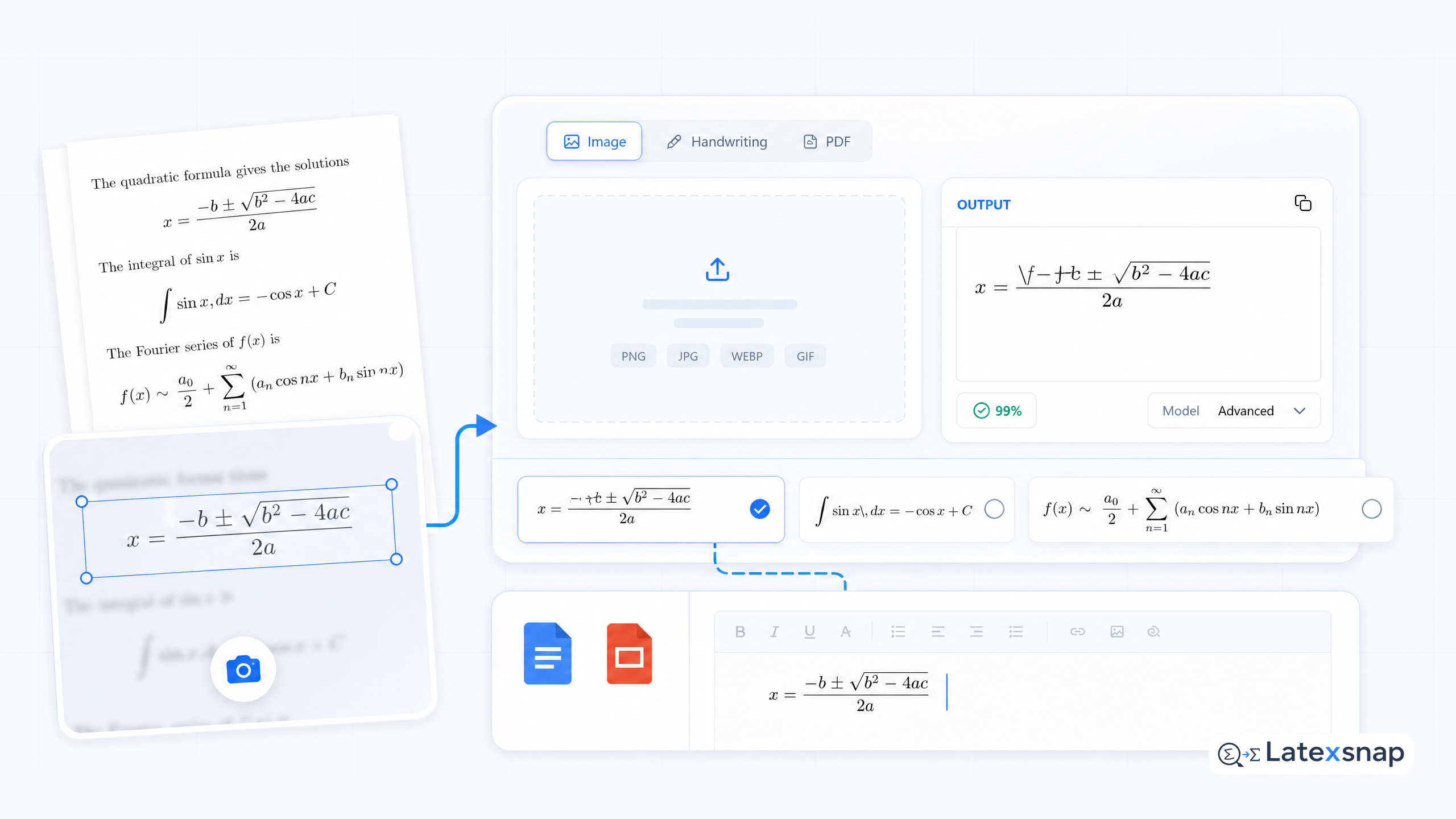
Convert formulas faster
Turn screenshots, handwriting, and PDFs into editable LaTeX.
